You use it every single day. You complain about it regularly. And if someone asked you to explain what it actually is, most people would just say "it is the internet." Which is close but not quite right.
So let us fix that.
What WiFi Actually Is
WiFi is a wireless path to your router. That is it.
Most homes and businesses have a box from their internet company that handles the connection coming into the building. Some boxes broadcast a wireless signal built in. Others require a separate device to do that. Either way, whatever is broadcasting that signal is what creates your WiFi.
Think of it like an invisible wire connecting your devices to your router, except there is no actual wire. Your devices connect through the air instead.
What it actually is, is a radio signal. The same way a radio station broadcasts music through the air and your car picks it up, your router broadcasts a signal and any wireless device in range picks it up. Your phone, your laptop, your TV, all of it.
WiFi does not actually stand for anything. It was invented by a branding company in 1999, hired to come up with something catchier than the actual technical name. You may have heard it stands for Wireless Fidelity but that was just a tagline briefly added to make it sound meaningful and was dropped pretty quickly. WiFi is just a brand name, like Kleenex or Band-Aid, that became the word everyone uses.
The Frequencies. 2.4 GHz, 5 GHz, and Now 6 GHz.
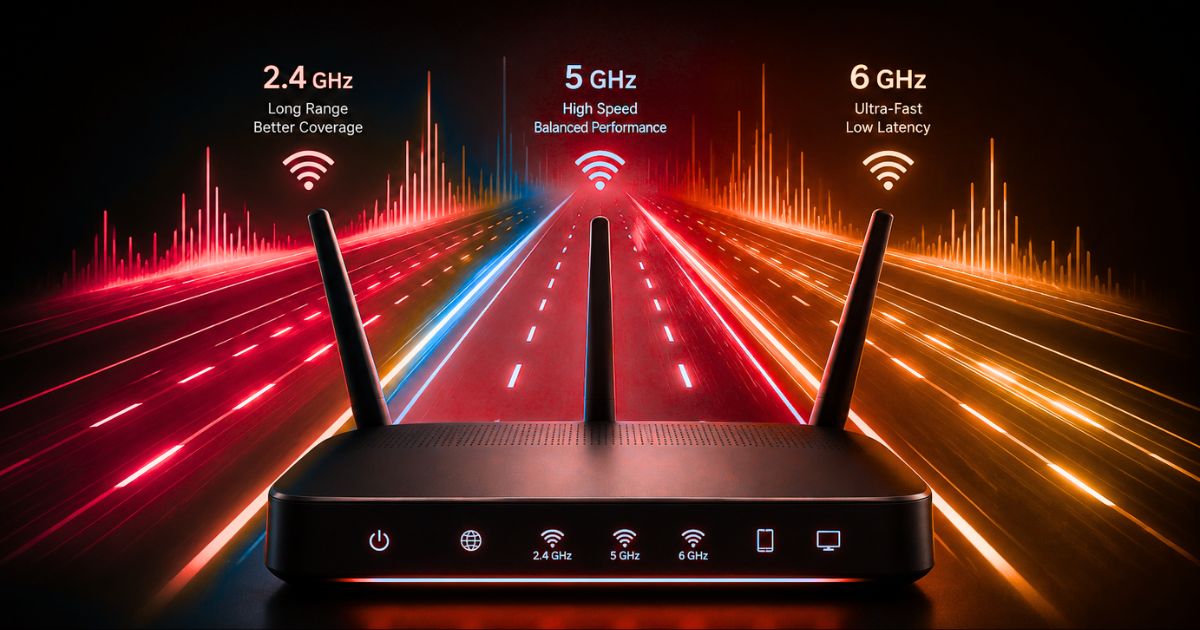
Your router most likely broadcasts on more than one frequency at the same time. Think of frequencies like different roads going to the same destination. Each road has different characteristics.
2.4 GHz travels the furthest and gets through walls the best. It works well for most everyday tasks and is the frequency almost all smart home devices use. Doorbells, thermostats, light bulbs, locks, sensors. All of them typically connect on 2.4 GHz. Not because they are cheap or old, but because they need the range and do not need high speed.
The downside of 2.4 GHz is congestion. It has been around since the beginning of WiFi and almost every device in every home uses it. When you search for a network and see a long list of your neighbors' networks, nearly all of them are on 2.4 GHz. All of those networks competing for the same limited space slow each other down.
5 GHz is faster and handles more traffic but does not travel as far or get through walls as well. It has far more available channels than 2.4 GHz, which means significantly less interference from neighboring networks. Your laptop, phone, and streaming devices do best here when they are in reasonable range of the router.
6 GHz is the newest addition, available on WiFi 6E and WiFi 7 routers. It is the fastest of the three and the least congested of all. The tradeoff is the shortest range and it only works with newer devices that support it. As more devices catch up it will become increasingly useful, especially in spaces with many devices competing for the same bandwidth.
Most modern routers let you keep all frequencies combined under one network name and manage connections automatically, or separate them so you can control which devices connect to which. When separated you will see names like MyHome for 2.4 GHz and MyHome_5G for the faster band. Putting your smart home devices specifically on 2.4 GHz resolves a surprising number of connectivity problems with those devices.
Why Your WiFi Is Great in One Room and Terrible in Another
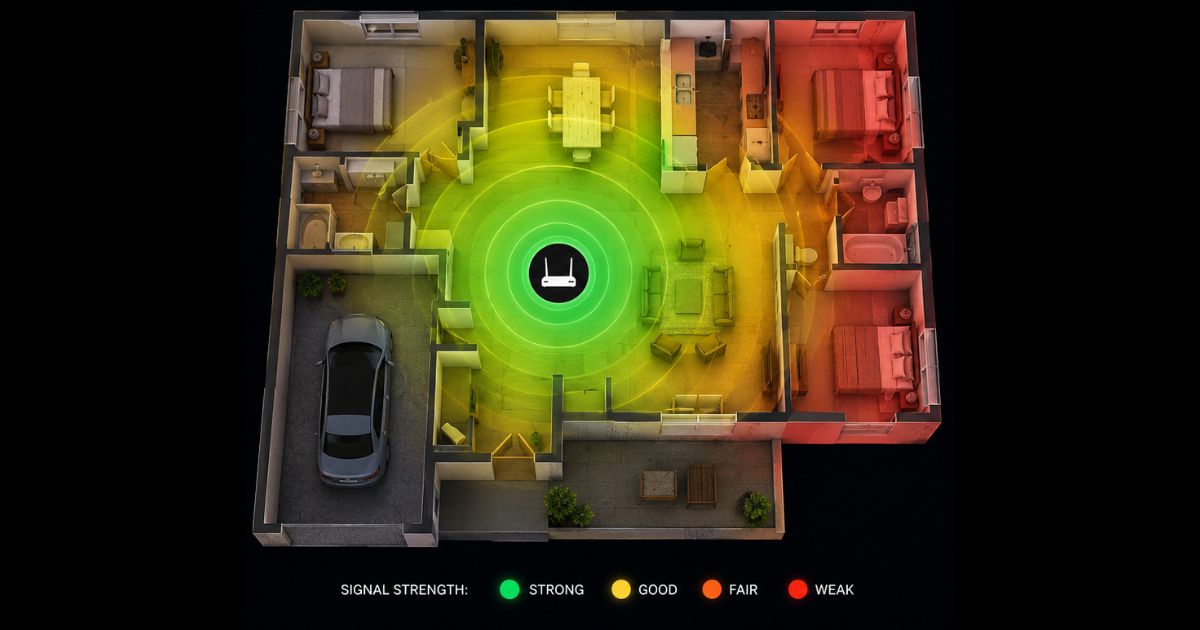
The signal from your router does not travel through everything equally. Think of it like sunlight coming through windows. The further you get from the source, the dimmer it gets. Anything solid in the way blocks or weakens it further.
Walls, floors, and building materials all absorb signal as it passes through. Concrete and brick are the worst. Even regular drywall reduces signal strength noticeably. Higher frequencies like 5 GHz and 6 GHz get absorbed more than 2.4 GHz does. That is why 2.4 GHz travels further and handles obstacles better. It is not faster, but it goes the distance.
Where you put the router matters more than most people realize. A central location, raised up on a shelf or table, gives the signal the best chance of reaching throughout the space. A router shoved in a corner, tucked in a closet, or sitting on the floor is working against itself from the start.
Other things cause interference too. Microwaves, cordless phones, and baby monitors all operate on similar frequencies and can disrupt the signal when they are running nearby.
No two spaces are the same. The layout, the building materials, and the number of devices all affect how WiFi performs. A proper wireless survey maps signal strength throughout an area and identifies exactly where coverage falls short and why. If you suspect your space has coverage problems, that is something we can help figure out.
The WiFi Terms You Will See on Boxes. Explained Quickly.
SSID is just the name of your WiFi network. It is what shows up when you search for available networks on your device. Your router comes with a default name but you can change it to anything you want.
MIMO stands for Multiple Input, Multiple Output. It means the router uses multiple antennas to send and receive data to several devices at the same time. When you see a rating like 2x2 or 4x4 on a router, those numbers tell you how many simultaneous data streams it supports. More streams means more devices handled at once with better performance. MU-MIMO, which stands for Multi User MIMO, takes this further by giving each device its own dedicated stream rather than sharing one.
WiFi 5, 6, and 7 are version numbers. Each version brings improvements in speed, efficiency, and how well it handles multiple devices at once.
WiFi 5 runs on 2.4 GHz and 5 GHz and delivers solid, reliable performance for everyday tasks. Still widely used and works well.
WiFi 6 also runs on 2.4 GHz and 5 GHz but is significantly more efficient at managing many devices simultaneously, which matters in homes and offices with phones, laptops, smart TVs, and smart devices all running at once. WiFi 6E adds the 6 GHz band for even less congestion on compatible devices.
WiFi 7 runs on all three frequencies at the same time and can connect a device to multiple bands simultaneously, automatically using whichever is fastest and least congested at any given moment. It is the most capable standard available today.
Mesh WiFi. What It Is and When You Need It.
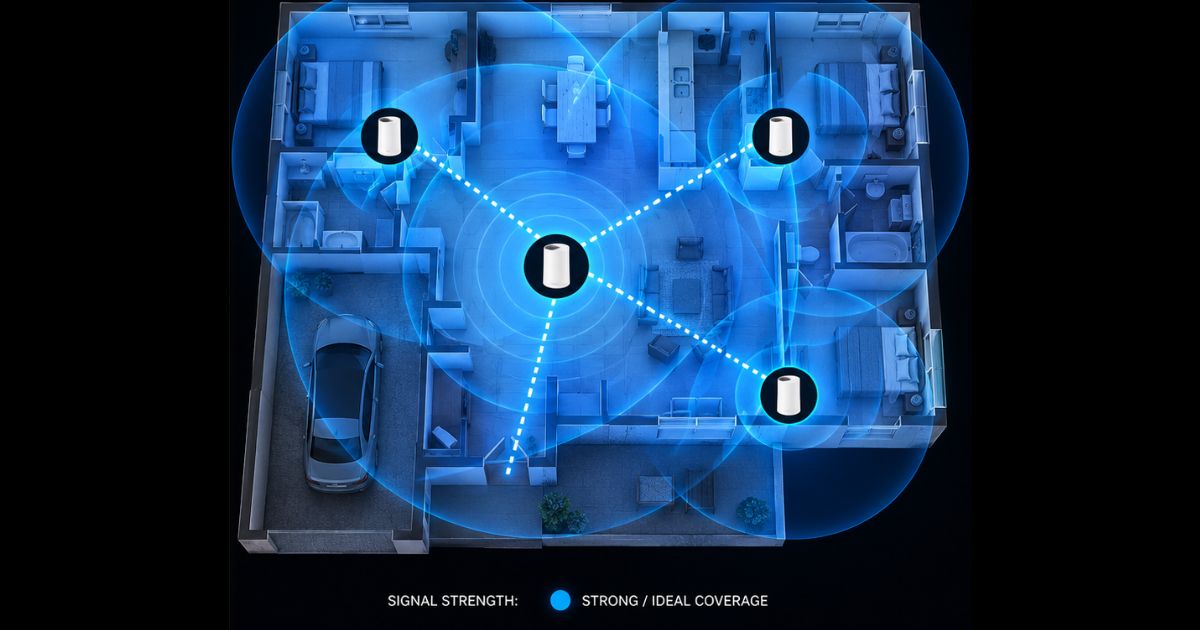
In offices and commercial spaces, the standard approach to WiFi coverage is running ethernet cables to multiple access points placed strategically throughout the building. The cabling infrastructure makes this reliable and consistent.
In homes and many smaller businesses, running cables through walls and ceilings is simply not practical. That is exactly the problem mesh WiFi was designed to solve.
A mesh system uses multiple devices placed around the space that communicate wirelessly with each other while also broadcasting your network to all your devices. Each mesh device acts as its own access point and they all work together seamlessly. Any device automatically connects to whichever node is closest without you doing anything. No manually switching networks, no dead spots, just consistent coverage throughout the space.
If your space is smaller and reasonably open, a single well-placed router may be all you need. If you have dead spots, multiple floors, thick walls, or a large footprint, a mesh system is the right answer. They have become significantly more affordable in recent years and the difference in coverage and reliability can be dramatic.
The One Thing Worth Remembering
WiFi is a radio signal connecting your devices wirelessly to your router. Understanding how it works, which frequency your devices should be on, and what the specs on the box actually mean puts you in control of your own network instead of just hoping it works.
And if you need help figuring out what your space actually needs, that is exactly what we are here for.